Getting Started with Sublime Text
Introduction
The console is a great tool for experimentation, and we are going to continue to use it throughout the class; however, it has some limitations:
- Ephemeral: All the code you enter into the console goes away! There's no way to keep it around after you close your browser, and no way to refer back to something you wrote a while ago. When your programs get bigger, this won't work.
- Poor Editing Capability: The console is not very good at helping you to write code that spans multiple lines, as we soon will. We need something with better editing capabilities.
First, if you haven't yet installed a text editor like Sublime Text 3, now is the time. Do this before moving on.
Starter Project
We provide a starter project that you can use for most days' exercises. You can get it by following these instructions:
[Right click here](https://github.com/hackreactor/reactorprep-starter/archive/master.zip and select "Save Link As..." to save the archive somewhere, e.g your desktop.
Next, unarchive the folder inside (can usually be done by just double-clicking) and open the folder for the current day's project.
Now, complete the following steps:
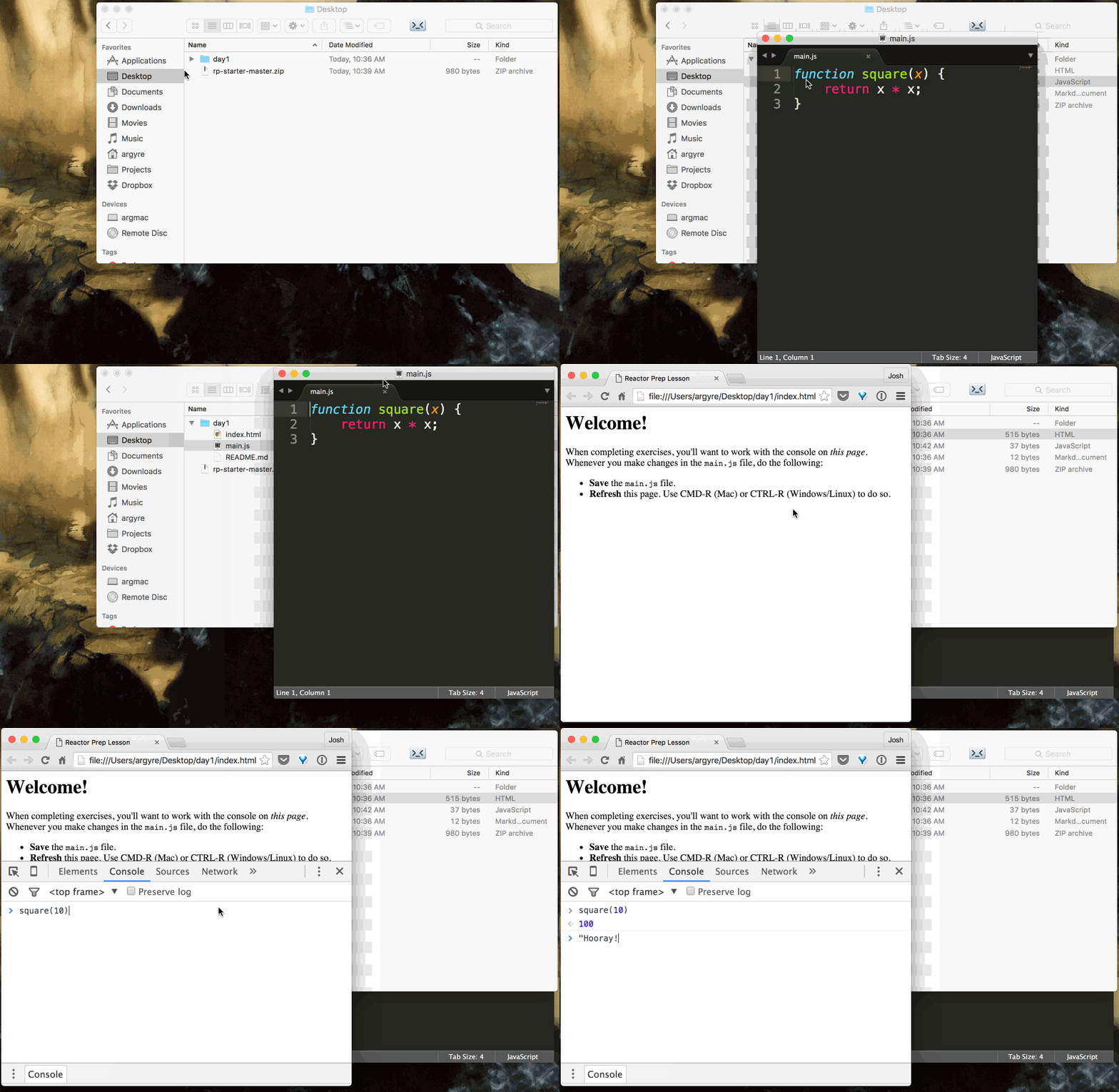
- Open that day's JavaScript file in Sublime Text (you may need to right click).
You should see the following in the file:
function square(x) { return x * x; } - Open that day's HTML file in Google Chrome (you may need to right click and "Open With..."). You should see a page open in your browser that says Welcome! at the top.
- Open a console in the Welcome HTML page. Type
square(10)into the console and hit Enter -- 100 should be the result. If so, everything's working!